Last played
Unfinished games
Loading saved games…
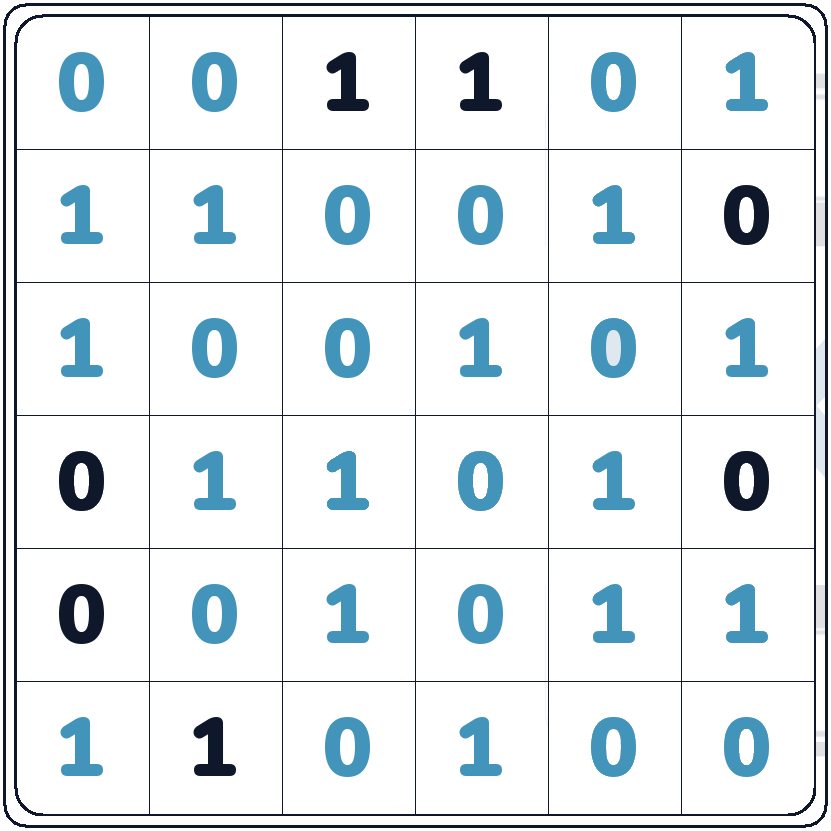
Takuzu, also known as Binairo, is a logic puzzle played on a grid using only 0s and 1s. Some cells are already filled at the start, and the remaining cells must be completed while keeping every row and column balanced and unique.
Your board, undo/redo history and checkpoint are saved on this device as you play. When you leave the board through the site or app navigation, your unfinished progress is saved on the server before you continue. Resume it from Last played or the unfinished games list. Use the same signed-in account to continue on another device. Closing the browser or app does not send a server save.
Rules
- Each cell must contain either 0 or 1.
- Each row and column must contain an equal number of 0s and 1s.
- Three (or more) identical values cannot be adjacent.
- Every completed row and column must be unique.
Takuzu uses three Easy techniques and two additional Hard techniques. Every technique applies to both rows and columns, and works the same way with 0 and 1 reversed. Easy boards use only Easy techniques. Hints examine the permitted techniques from hardest to easiest and stop at the first applicable pattern.
Easy Techniques
- Duo — Two equal adjacent digits force the opposite digit into each empty cell immediately outside the pair. Three equal digits cannot be adjacent. For example, _00_ becomes 1001.
- Sandwich — The empty cell between two equal digits must contain the opposite digit, so they cannot form a triple. For example, 0_0 becomes 010.
- Count saturation — Half of this row or column already contains the same digit. Every remaining empty cell must contain the opposite digit. For example, 00__01 becomes 001101.
Hard Techniques
- Near complete — Only one occurrence of a digit is missing. Placing it in a highlighted cell would force a triple of the opposite digit elsewhere in the line, so that cell must contain the opposite digit. For example, in 1__0_101, the second and fifth cells must be 0: 10_00101. Count saturation then fills the remaining cell with 1.
- Unique line — This line has two empty cells and otherwise matches a completed line of the same orientation. Fill the empty cells with the opposite digits to avoid duplicating that line. For example, if a completed row is 01100110, the row 01__0110 must become 01010110. Compare rows with rows and columns with columns.
Takuzu has no game-specific settings. The general settings shared across games are available from Settings in the menu or app navigation, including during a game. Save applies your changes without restarting the game; Cancel discards unsaved changes.
General settings
- Check puzzle automatically when completed — evaluates the board once every cell contains 0 or 1. When switched off, use Check solution: it becomes highlighted and available when every cell is filled. A correct result ends the game and stops the timer; an incorrect result lets you continue correcting the board. Switching this setting on with an already filled board evaluates it immediately.
- Show rule violations — a danger icon marks the entry that caused a detectable error; related cells receive a frame. All boards check triples and excess digit counts. Hard boards also check duplicate or forced-duplicate lines and near-complete placements that force a triple. The check uses your current entries and permitted techniques, without comparing them with the stored solution. Turning this off hides both the icons and frames; final solution checking remains available.
- Confirm destructive actions — asks for confirmation before Reset, Load checkpoint and Show solution.
- Learning mode — practise the five techniques on a new 6×6 or 8×8 Hard board. Techniques are taught in rounds, with highlighted examples and help after three consecutive mistakes. Learning games have no timer, sharing or normal statistics.
Board Controls
Fill the grid using the 0 and 1 buttons below the board. Pre-filled cells are fixed and cannot be changed. Your moves are tracked automatically.
- Input panel — select 0 or 1, then tap a cell to enter that digit. The selected tool stays active for subsequent cells.
- Changing or clearing a cell — select the other digit and tap a filled cell to replace its value. Tap a cell with its current digit selected to clear it. Tapping a cell without selecting a tool only selects the cell.
Action Bar Tools
- Undo & Redo — step backward or forward through your move history.
- Checkpoints — use Save checkpoint to store your current board and history before trying an idea. Load checkpoint restores that saved state without restarting the game. Saving again replaces the previous checkpoint.
- Check solution — when automatic completion checking is turned off, this icon becomes highlighted once every cell is filled. Tap it to evaluate your board.
- Reset — clears your entries, undo/redo history and checkpoint, returning the board to its starting state. Pre-filled digits remain unchanged.
- Show solution — reveals the full solution and ends active play. The timer stops, all cells are locked, and the game cannot be shared as a completed solution. Confirmation is requested when Confirm destructive actions is enabled.
- New game — start another puzzle with the selected size and difficulty.
- Help — open this guide again at any time.
Hints & Rewarded Extras
- Logical Hint — tap the lightbulb to get a logical deduction based on your current board. The hint explains the technique, highlights all target cells belonging to that application, and marks supporting cells separately. Target badges show which digit to enter; you enter the digits yourself.
- Rewarded Ads — when rewarded advertising is enabled, watching the required video unlocks the hint. Without rewarded advertising, the hint is requested directly. If the hint request fails after the video, retrying does not require another video.
Completing the Puzzle
Fill every cell with 0 or 1. Each row and column must contain equal numbers of both digits, no three equal digits may be consecutive, and no two completed rows or two completed columns may be identical. With automatic checking enabled, filling the last cell sends the board for verification; otherwise, use Check solution. A correct solution stops the timer, saves your result and move journal on the server, and locks the board. An incorrect solution leaves the game open so you can correct your entries.
Replay Controls
- Replay — after completing a puzzle, tap Play to watch your solving history, including undo/redo, resets and checkpoint restores. The starting digits remain fixed. Playback does not change your saved game.
- Speed toggle — during playback, tap the replay control to switch between normal and fast speed. Once playback finishes, tap Play to start again.
Sharing Your Result
- Share — after completing a puzzle, use the sharing buttons to publish a link to your result and replay. Copy the link, share to a supported social service, or use the native share dialog in the app. The public page lets others watch your solution without changing your game.