Size
Last played
Unfinished games
Loading saved games…
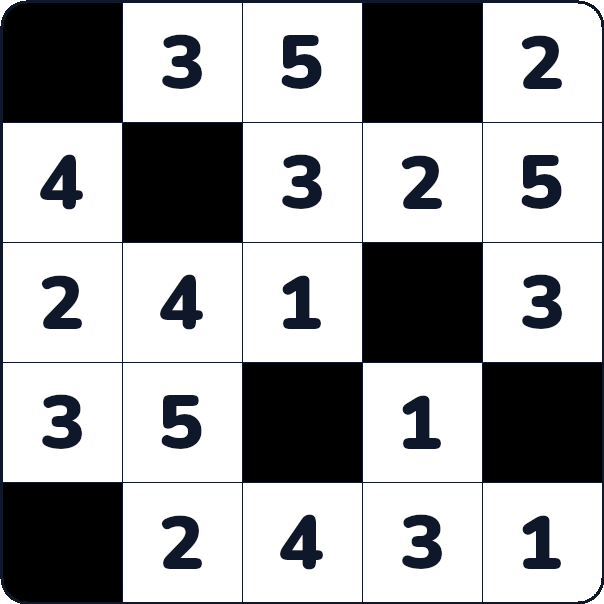
Hitori is a logic puzzle played on a grid filled with numbers. The goal is to shade some of the numbered cells so that the remaining visible numbers follow the rules. A correct solution must remove repeated visible numbers while also preserving the required structure of the unshaded cells.
Your progress, undo/redo history and checkpoint are saved on this device as you play. You can continue here after reloading or returning to the game. Unfinished progress does not transfer to another device and is lost if you clear this site's local storage. When you complete the puzzle, its result and full replay are sent to the server. Hints and solution checks require a connection.
Rules
- Each number may appear only once in each row and column.
- Two shaded cells may not be adjacent horizontally or vertically.
- All unshaded cells must remain connected as a single group.
Hitori uses six Easy techniques and two additional Hard techniques. Easy boards use only Easy techniques. Hints examine the permitted techniques from hardest to easiest and stop at the first applicable pattern.
Easy Techniques
- Unique in Line — If a number has no other active occurrence in either its row or column, that cell cannot be shaded and is confirmed as white.
- Black Neighbors White — Because two shaded cells may not touch horizontally or vertically, every orthogonal neighbour of a shaded cell must remain white.
- White Duplicates Black — Once a cell is confirmed white, every other cell containing the same number in its row or column must be shaded.
- Duplicate Triplet — If three identical numbers appear consecutively in a row or column, the middle cell must remain white and the two outer cells must be shaded. Already marked cells still belong to this pattern.
- Duplicate Sandwich — If two identical numbers have exactly one cell between them, the middle cell must remain white. Shading the middle cell would force both matching cells to remain white, creating a duplicate.
- Adjacent Duplicate Pair — Two adjacent identical numbers cannot both be black, so at least one must remain white. Every other occurrence of that number in the same row or column must therefore be shaded.
Hard Techniques
- Corner Deadlock — If a corner and both of its orthogonal neighbours contain the same number, and neither neighbour is shaded, the corner must be black. A white corner would force both neighbours to be black and become isolated.
- Connectivity — White and unmarked cells must form one area connected horizontally and vertically. If shading an unmarked cell would split that area, the cell must remain white.
Open Settings from the menu or the app navigation, including during a game. Hitori settings appear first, followed by general settings shared across games. Save applies your changes without restarting the game; Cancel discards unsaved changes.
Hitori settings
- Automatically mark white neighbors of black cells — when you mark a cell black, its unmarked horizontal and vertical neighbors are marked white automatically. Existing white and black marks are left unchanged. The black mark and its automatic whites are saved as one action, undone and redone together, and shown together in replay. Manually clearing the black mark keeps the white marks. Changing this setting affects new actions only.
- Show numbers in black cells — keeps the original numbers faintly visible inside black cells. These cells remain black and are excluded from matching-number highlights.
- Highlight row and column — subtly highlights the row and column of the last cell you tapped. Black cells are excluded, and the selected cell keeps its own background and orange selection outline.
- Highlight same numbers — subtly highlights matching numbers only in the selected cell's row and column. Black cells are excluded. This setting works independently of row and column highlighting.
General settings
- Check puzzle automatically when completed — evaluates the board once every cell is marked black or white. When switched off, use the Check solution icon: it becomes orange and available when every cell is marked. A correct result ends the game and stops the timer; an incorrect result lets you continue correcting the board. Switching this setting on with an already fully marked board evaluates it immediately.
- Show rule violations — displays a red warning triangle on cells involved in a current rule violation: repeated confirmed-white numbers in a row or column, adjacent black cells, or smaller non-black areas cut off from the main area by black cells. Unmarked cells are included when checking connectivity; only the isolated areas receive connectivity warnings. This checks the current marks against the rules, without comparing them with the stored solution or predicting later mistakes. Turning it off hides the warning triangles but does not disable final board evaluation.
- Confirm destructive actions — asks for confirmation before Reset, Load checkpoint and Show solution.
- Learning mode — not available yet.
Board Controls
Play by interacting directly with the grid cells or using the input panel below the board. Your moves are tracked automatically.
- Tapping a cell — cycles through its states: unmarked, shaded (black), and confirmed (white).
- Input panel — tap an action button below the board (Shade black or Mark white), then tap any cell on the grid to apply that state directly.
Action Bar Tools
- Undo & Redo — step backward or forward through your move history.
- Checkpoints — tap Save checkpoint to store your current board state before testing a hypothesis. Tap Load checkpoint at any time to restore the saved state without restarting the game.
- Check solution — when automatic completion check is turned off, this icon highlights once every cell has been marked. Tap it to evaluate your board.
- Reset — clears all marks, undo/redo history and checkpoints, returning the board to its starting state.
- Show solution — reveals the correct solution immediately. This ends active play and locks further moves.
Hints & Rewarded Extras
- Logical Hint — tap the lightbulb icon to receive a hint. Hints analyze your current board and explain the next logical deduction step by step.
- Rewarded Ads — hints are supported by short video advertisements. Watching the required video unlocks the hint. If a network issue prevents the hint from loading, you can retry without watching another ad.
Completing the Puzzle
Once the board is completely and correctly solved, the timer stops and your final move journal is saved. You can replay the entire solving process at normal or fast speed using the replay controls.
Replay Controls
- Replay — tap the Play button to watch an animated walkthrough of your entire solving history from the first move to completion.
- Speed toggle — switch between normal and fast playback speed at any time during the replay.
Sharing Your Result
- Share — generate a shareable result card with your solving time, grid dimensions, and difficulty to challenge others or save your achievement.